
Have you ever browsed a website, forgotten to bookmark it, and then lost track of the page? Maybe you found a great recipe, an insightful article, or a website you want to revisit. Fortunately, Safari keeps a record of the websites you browse and can make it easier to find those that you visit.
If you’re looking for instructions on how to see history on Safari, your options are relatively simple depending on whether you’re on an iPhone, iPad, or a Mac. You can open your browsing history, search it for specific websites, and even reopen tabs that you may have accidentally closed.
In this guide, we’ll show you how to see history on Safari for iPhones, iPads, and a Mac, explain how to manage your records, and give you a few helpful tips on how to search them.
How to See History on Safari on iPhone
When you’re browsing the web using Safari on your iPhone, you can find your browsing history right inside the app. You don’t have to open Settings or install a third-party app in order to open or view your history.
To open your history, follow these instructions:
- Open the Safari app on your iPhone.
- Tap the bookmarks icon (the open book).
- Select the History tab (it’ll look like an hourglass).
- Browse through the list of websites that you’ve visited.
- Tap a page in order to reopen it.
Depending on your iOS version or Safari view options, the bookmark and history icons may be at the top or the bottom of the screen. You might have to check which toolbars are available in Safari in order to see the bookmarks icon.
Tip: If you’re looking for a website that you’ve recently browsed, make sure to look at the later entries first. Older entries will show up in your History tab in order of the dates that you visited them.
How to Search Your Safari History on iPhone
If you have dozens or hundreds of websites in your browsing history, it may be tedious to scroll through them all to find what you’re looking for. Fortunately, you can search your Safari history.
To search your browsing history on iPhone, follow these steps:
- Open your Safari app.
- Tap on the bookmarks icon.
- Select the History tab.
- Look for the search bar in the list of websites.
- Search for a website name, any keywords, or the name of a page’s title.
- Tap a search result in order to reopen the website.
For example, if you’re searching for an article about skincare, you may be able to search for a keyword that you remember from the page’s title. The search results will depend on what Safari remembers about your browsing history. You may not be able to find pages that you have deleted from your history.
While reviewing your browsing and communication activity, you may also come across unfamiliar call statuses, making it useful to understand What Does Cancelled Call Mean? Complete iPhone & Android Guide.
How to See History on Safari on Mac
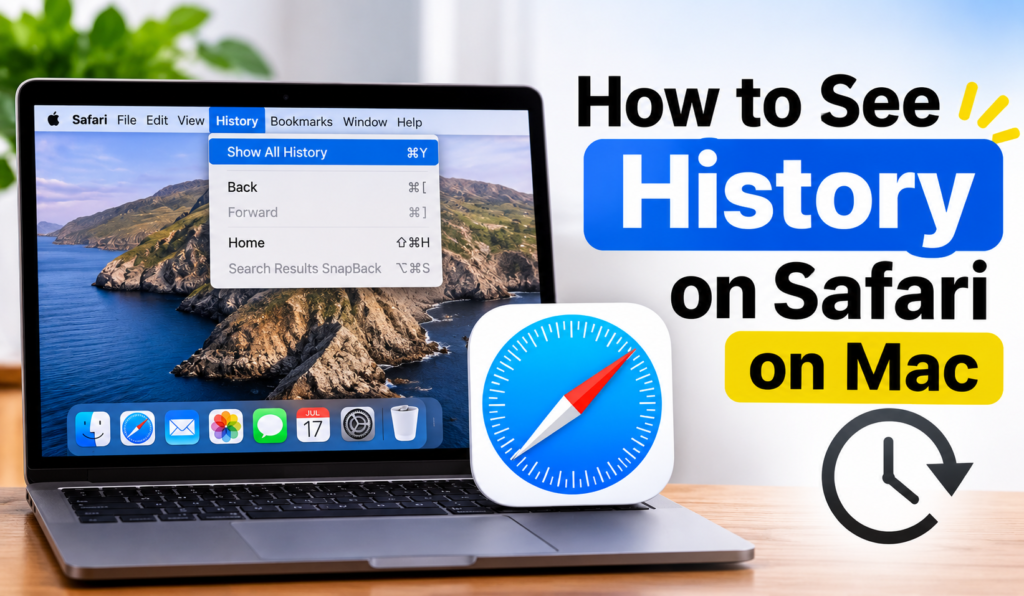
On Mac, you may be able to find your Safari history more easily than on your iPhone. Safari for Mac has a dedicated History tab in the menu bar at the top of the screen.
To open your Safari history, follow these steps:
- Open the Safari app on your Mac.
- Click on History in the menu bar at the top of the screen.
- Select Show All History.
- Browse through your list of websites that you’ve visited.
Double-click a webpage in order to reopen it.
Your browsing history will generally be organized by dates. This should make it easier to find webpages that you’ve visited in the last day and previous weeks or months.
You may also be able to select options from the History menu to reopen recently closed pages or tabs, depending on the options that you see.
How to Search Safari History on Mac
If you only remember part of a website’s name or title, you may find searching your Safari history to be a faster option than scrolling through an extensive list of websites.
To search Safari history on your Mac, follow these steps:
- Open your Safari app.
- Click on History, then select Show All History.
- Look for the search bar in your list of browsing history.
- Type a website name, keywords, or a webpage’s title.
- Review the search results.
Double-click a link to reopen the page.
For example, if you’re looking for a page on a shopping website, you may be able to type in the name of the site in order to find what you’re looking for. You may also find that you can select links from the History menu to reopen pages without going through the entire browsing history window.
How to Find Recently Closed Tabs in Safari
If you’re not looking for all of the websites that you’ve browsed, but rather pages that you’ve accidentally closed, Safari offers some convenient shortcuts.
On iPhone and iPad
- Open your Safari app.
- Click the tabs button to see your open tabs.
- Touch and hold the + button (where applicable).
- Look for the Recently Closed Tabs list.
- Tap the page that you want to reopen.
The options for recently closed tabs may vary depending on which iOS or iPadOS version you’re running. You may also want to look for an option in the History list to reopen a closed tab or page.
On Mac
- Open your Safari app.
- Click History .
- Select Recently Closed from the menu or Reopen Last Closed Tab, if available.
- Select the page that you want to reopen.
You may also be able to use keyboard shortcuts, such as Command + Shift + T , to reopen recently closed tabs on your Mac in certain Safari versions. This may vary depending on your version of macOS and Safari.
Note: Recently-closed tabs and browsing history are two different features. A closed tab may no longer be open, but it may still show up in your browsing history.
While checking your Safari history for past browsing activity, you may also want to learn How to Call Back No Caller ID Number | Proven Methods to identify and return calls from unknown numbers.
How to Delete Browsing History on Safari
If you want to avoid leaving a record of the websites that you browse, you can delete your Safari history.
Delete History on iPhone and iPad
- Open the Settings app.
- Scroll down and tap Apps > Safari on newer versions of iPadOS or iOS. On older versions, you may have to tap Safari directly in Settings.
- Tap Clear History and Website Data .
- Select a time-range option, if applicable.
- Tap Clear History and Website Data in order to confirm.
Depending on your settings, clearing history can also clear cookies and other website data that Safari has stored for you. This may log you out of some websites that you’re signed into.
Delete History on Mac
- Open your Safari app.
- Click History in the menu bar at the top of the screen.
- Click Clear History .
- Select a time-range option, if applicable.
- Click Clear History to confirm.
The time-range options may vary depending on your Safari and macOS version. Deleting your history will remove the records that you’ve browsed, so make sure you no longer need them before clearing your history.
Why Can’t I See My Safari History?
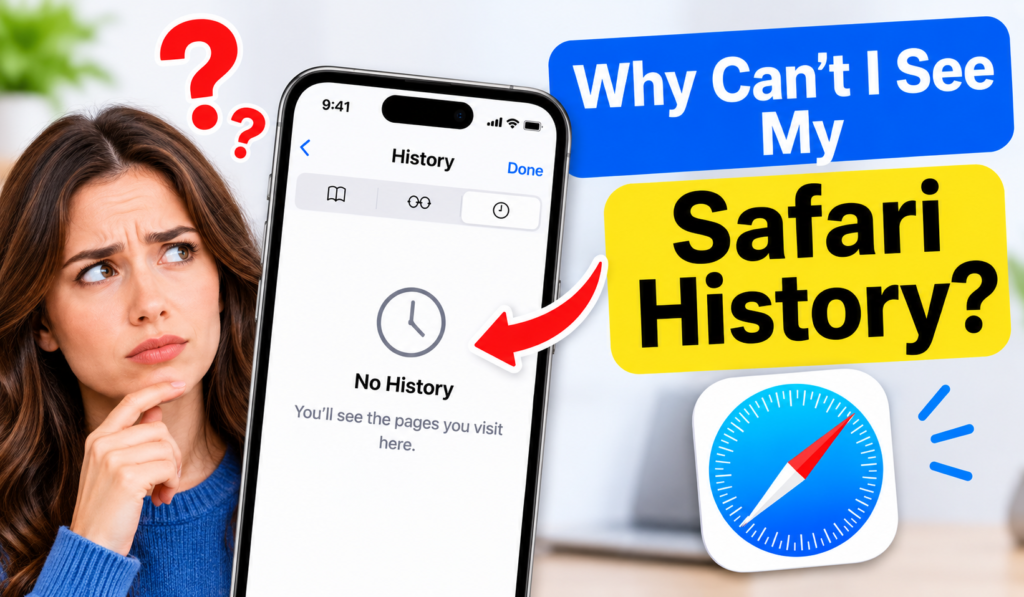
If you’re unable to see your Safari history, there are several reasons that this might be happening.
1. You may have browsed in Private Browsing mode. If this is the case, Safari typically won’t save your history.
2. You may have deleted your history, so it’s no longer visible.
3. You may be looking at the history of a different device. Your browsing history will sync across Apple devices if you enable the option to do so.
4. Your browsing history isn’t limitless. Safari isn’t a permanent archive of every single page that you’ve browsed.
5. If you’re seeing different options, you may be looking at a different device or version of Safari.
If you’re using multiple Apple devices to browse the web, make sure that you’ve enabled the option to enable your Safari history on all of your devices. When you enable this option, you’ll be able to see your history on any Apple computer or phone that’s signed into the same Apple Account. Keep in mind that syncing may take some time to complete.
While browsing history helps you revisit past websites, you can also explore useful tips like How to Make Text Small in Discord? to customize your online communication experience.
Frequently Asked Questions
Can I see deleted Safari history?
If you’ve deleted Safari history, it should no longer appear in your browser. You may still be able to find a bookmark for the page, or it may be available elsewhere if you’re viewing a different device that hasn’t synced with your Safari settings. Keep in mind that deleted history typically stays deleted.
Does Safari save Private Browsing history?
No, Safari typically doesn’t save history for pages that you visit using the Private Browsing feature. This is meant to keep your online activity private, but it’s not a reliable way to keep a record of the sites that you browse.
Can I see Safari history from another Apple device?
Yes, potentially. If you’ve enabled the option to do so, you can use an Apple computer or phone to view Safari history. Make sure that both of your devices are signed into the same Apple Account, and enable the appropriate settings that let you view your browsing history across devices.
How far back does Safari history go?
Safari doesn’t guarantee that your history will permanently stay available. The amount of history that you can see depends on your history records, your device, and whether you’ve deleted any old entries.
Final Thoughts
Knowing how to view history on Safari will be very helpful for you. You will be able to see websites that you may have forgotten about and will be able to find the information you were previously browsing for much easier.
While being on your iPhone or iPad, you can open the bookmarks panel in Safari and then select History. On your Mac, you can click History and then Show All History to view your history on Safari. You can also search your history to look for certain keywords or websites and will be able to reopen tabs that you may have accidentally closed. The next time you have forgotten about a website, you might find your Safari history will have it for you.