Running out of storage on a Windows PC is one of those problems that seems simple until you actually try to find the cause.
Windows may tell you that your drive is almost full, but that does not always answer the important question: what is actually using all that space?
You might have a few large videos buried somewhere in your Downloads folder. It could be an old game installation, a collection of ISO files, application data, backups, or simply years of files that have accumulated without anyone noticing.
This is where WizTree comes in.
WizTree is a disk space analyzer for Windows that gives you a detailed view of the files and folders occupying your storage. Instead of manually opening folders and checking their properties, you can scan a drive and quickly see where the space is going.
One of the reasons WizTree has become popular among Windows users is its scanning speed. On NTFS drives, it can read the Master File Table directly, allowing it to analyze the file system much faster than many traditional disk analysis tools.
The current version has also evolved well beyond being a simple folder size viewer. WizTree can search for large files, locate potential duplicates, filter files by size and date, create visual treemaps, and export file information for further analysis.
What Is WizTree?
WizTree is a Windows utility designed to analyze disk space usage.
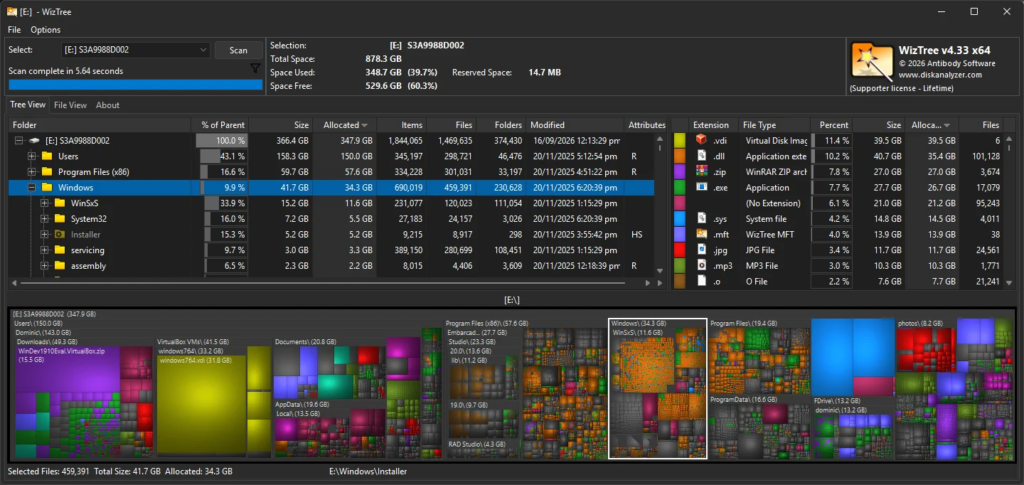
After scanning a drive, it presents the contents in a tree structure that makes it easy to see which folders are consuming the most storage. It also provides a visual treemap where large files appear as large blocks.
That visual representation is particularly useful when you are trying to understand a drive quickly.
For example, suppose your 1 TB drive is nearly full. Looking at the drive in File Explorer does not immediately tell you where the problem is. You may have hundreds of folders spread across the drive.
WizTree can turn that information into a much clearer picture.
You can see that one folder is responsible for a large percentage of the storage, open it, and continue drilling down until you find the files responsible.
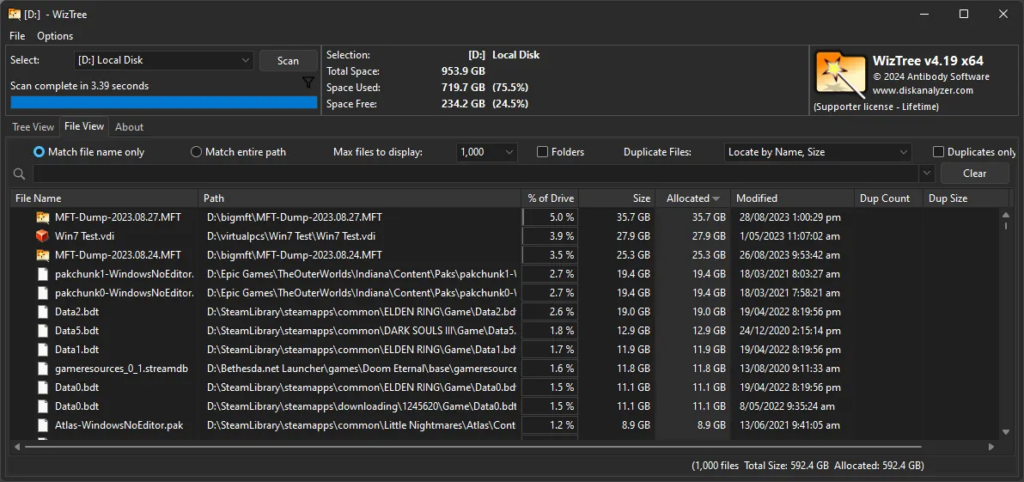
The software also has a File View that allows you to work directly with individual files rather than only looking at folders. You can sort files by size, search for particular file types, identify duplicates and filter results using different criteria.
Why Would You Need a Disk Space Analyzer?
Windows already includes storage management tools, so why install another application?
The difference is visibility.
Windows can show you broad categories of storage usage, but when you need to investigate a specific folder or find the largest files on a drive, a dedicated analyzer is much more useful.
Consider a common situation.
Your C drive has only 15 GB remaining. You open File Explorer and start checking folders. Documents look normal. Pictures look normal. Downloads seems reasonable. You still have no idea where the missing hundreds of gigabytes went.
With WizTree, you can scan the drive and sort the contents by size. Large folders immediately stand out. From there, you can investigate individual files.
This is especially useful for people who regularly work with large files.
Video editors may have old project files sitting on their drives. Developers can accumulate build files, virtual machines and downloaded packages. Gamers can have installations that occupy hundreds of gigabytes. Even ordinary users can accumulate years of photos, videos, archives and downloads.
The important point is that WizTree does not magically clean your computer. It helps you understand the storage situation so you can decide what should be removed or moved.
How Does WizTree Work?
The interesting part of WizTree is what happens behind the interface.
On NTFS formatted drives, WizTree can read the Master File Table, commonly called the MFT, directly. The MFT is part of the NTFS file system and contains information about files and directories stored on the drive.
Rather than examining every file in the same way that a conventional application might, WizTree can use this information to build its view of the drive very quickly. The developers specifically describe direct MFT access as one of the reasons for its high scanning speed.
This is most noticeable when you scan a drive containing a very large number of files.
WizTree can also scan other storage types supported by Windows, including FAT and FAT32 drives, network drives and certain devices connected through USB. The scanning method can differ depending on the type of storage being analyzed.
It is worth remembering that the MFT is not some special database created by WizTree. It is part of the NTFS file system. WizTree is simply making efficient use of information that is already available.
How to Download and Install WizTree
The safest approach is to download WizTree from its official website.
The current download page provides an installer as well as a portable version. The portable version can be useful if you do not want to perform a traditional installation or need to run the utility from another location.
Once installed, launch WizTree.
The main interface may initially look more technical than a typical Windows utility, but the basic workflow is straightforward.
Select the drive you want to examine and start the scan.
If you are trying to free up space on your main Windows drive, that will usually be the C drive.
How to Use WizTree to Find Large Files
The easiest way to understand WizTree is to use it for a real storage problem.
Imagine your C drive is almost full.
Open WizTree and select the C drive. Start the scan and allow it to finish.
You will then see the drive represented as a hierarchy of folders and files.
Look at the largest folders first.
If your user profile is taking up a large amount of space, expand it. You might find that Downloads is responsible for a significant portion of the usage. Expand Downloads and you can continue until you reach the files responsible.
The same approach works for other locations.
You may discover that an old video folder occupies 200 GB. You might find a game library that has grown unexpectedly large. You could also discover backup archives that you no longer need.
The important part is that WizTree allows you to move from the general picture to the specific file quickly.
You can also switch to File View when you want to examine individual files. Sorting by size makes it easy to find the biggest files on the drive. The search function can then help you locate particular names or file types.
Understanding the WizTree Treemap
The treemap is probably the most recognizable part of WizTree.
Instead of presenting storage usage only as a list, WizTree represents files and folders using rectangles. The size of each rectangle corresponds to the amount of space being used.
A very large rectangle means you have found something worth investigating.
This makes the treemap particularly useful when you are dealing with a drive containing thousands or millions of files. You do not have to read every folder name to get a sense of what is consuming the most space.
Suppose you see a huge block occupying a significant portion of the screen. You can select it and investigate the corresponding file or folder.
You may discover that it is a video file, an archive, a game installation or something else entirely.
The visual approach is not necessarily better for every task, but for quickly understanding a large drive it can be extremely effective.
Finding the Largest Files
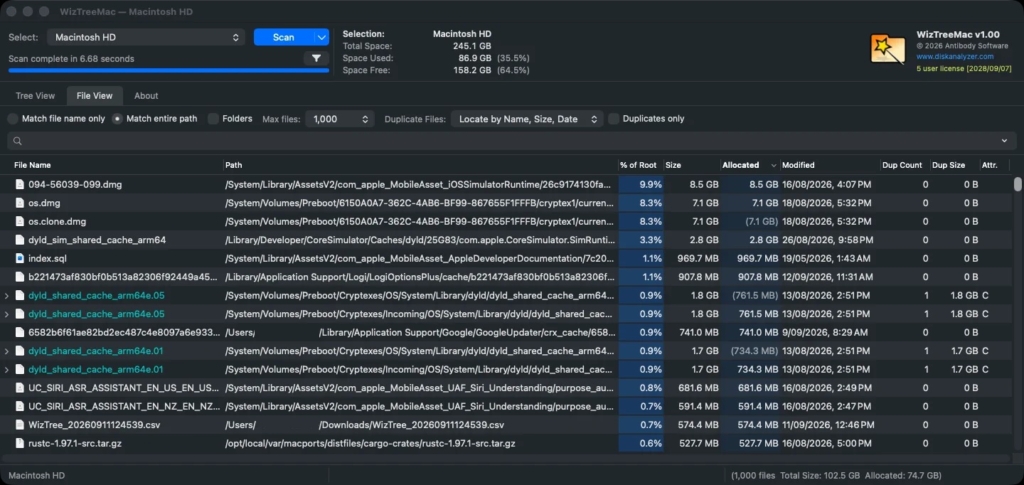
Sometimes you do not care which folder is responsible. You simply want to know which files are taking up the most space.
That is where File View becomes useful.
You can sort the files by size and immediately see the largest items.
This can reveal surprisingly large files that you may have forgotten about.
For example, a single video recording could be several gigabytes. An old virtual machine image could be tens of gigabytes. A disk image or backup archive could consume even more.
WizTree also supports search filters that allow you to narrow down results by size, file name and modification date. The current version supports expressions such as greater than or less than a particular size and filters based on dates.
That means you can do something as specific as looking for files larger than 1 GB that have not been modified recently.
For someone troubleshooting a storage problem, that can save a considerable amount of time.
How to Speed Up a Slow Internet Connection on Mac
Using WizTree to Find Duplicate Files
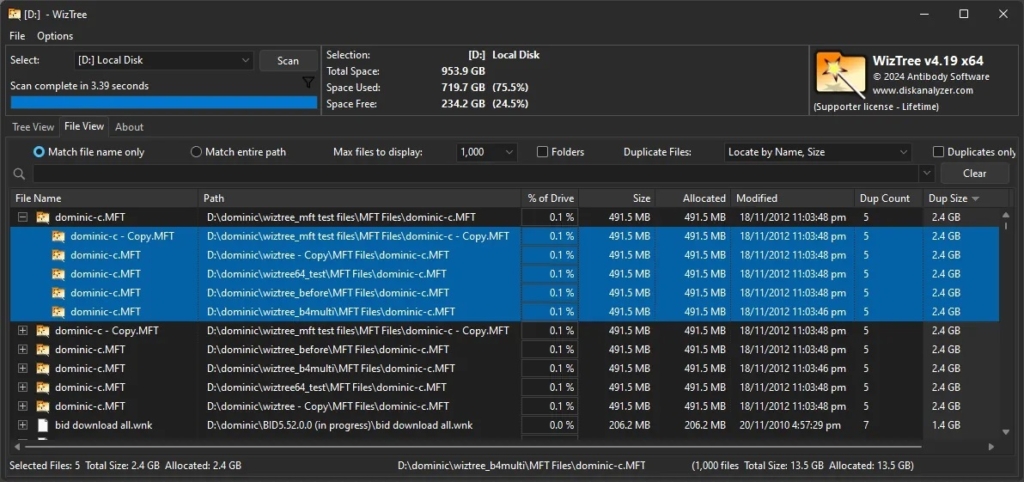
Duplicate files are another potential source of wasted storage.
WizTree includes duplicate file detection. Depending on the selected method, it can identify files based on their name and size, with date information also available as part of the comparison.
There is an important limitation here.
WizTree does not currently compare the actual contents of files to determine whether two files are identical. Two files with the same name and size are not automatically guaranteed to contain exactly the same data.
That means you should treat duplicate results as candidates for investigation rather than automatically deleting everything that appears in the list.
This is a good example of why disk analysis software should be used as an investigation tool rather than an automatic cleaning solution.
How to Free Up Space Using WizTree
Once you have identified the largest folders and files, the next step is deciding what to do with them.
Start with files you recognize.
Old downloads are usually easy to review. Large videos that you no longer need can be deleted or moved to another drive. Old installation files and archives can also be worth examining.
If a file is important but you rarely need it, moving it to an external drive or another storage location may make more sense than deleting it.
Be more careful with application folders and Windows system directories.
A file being large does not mean it is safe to delete.
For example, Windows can have large system files that are necessary for the operating system to work correctly. Application folders can also contain data that a program needs to function.
Before deleting an unfamiliar file, find out what it is and why it exists.
WizTree gives you the information needed to make that decision. It does not make that decision for you.
Is WizTree Safe to Use?
WizTree is a disk analysis utility, not a mysterious system optimizer that promises to make your computer faster with one click.
Its main purpose is to show you what is stored on your drives.
That distinction matters.
The safest practice is to download the software from its official website and avoid unofficial repackaged versions.
You should also be careful when using its delete functionality. If you do not recognize a file, do not remove it simply because it appears near the top of the size list.
The application itself is giving you information about storage usage. You remain responsible for deciding which files should be removed.
WizTree Features Worth Knowing About
WizTree has accumulated quite a few useful features over the years.
The visual treemap remains one of its most useful features, but it is not the only reason to use the application.
The File View can display individual files and help locate the largest items. Search supports file names and patterns, while filtering can be used to narrow results based on size or modification date. WizTree can also export file information to CSV and import previously exported data.
For users who need to perform more systematic analysis, CSV export can be particularly useful because the results can be opened and analyzed outside the application.
There is also command line support for exporting data, which can be useful in more technical or automated workflows.
Recent releases have continued to improve the software. WizTree 4.32 added official confirmation of Windows ARM compatibility through Prism emulation, while version 4.33, released in September 2026, introduced WizTreeMac for macOS 12 and later.
WizTree vs WinDirStat vs TreeSize
WizTree is not the only disk space analyzer available.
WinDirStat is one of the better known alternatives and has been around for many years. TreeSize is another popular option, particularly among Windows users and organizations that need more extensive storage analysis features.
The choice largely depends on what you need.
WizTree focuses heavily on speed and making storage usage easy to visualize. WinDirStat is known for its familiar treemap based interface and open source heritage. TreeSize provides a range of disk analysis capabilities and has editions aimed at different types of users.
There is no reason to assume that one application will be perfect for everyone.
If your main goal is to quickly answer the question “What is filling my drive?”, WizTree’s combination of fast scanning, sorting and visual analysis makes it a useful option.
New Nanoscale Technology for Memory Storage
Is WizTree Free?
Yes, but there is an important distinction between personal and commercial use.
The current free version is available for personal use. It includes the core disk analysis features, including rapid scanning, the tree view, visual treemap, file search and duplicate file detection. Commercial use requires a paid license.
The current licensing page lists a Supporter version for commercial use based on staff size and an Enterprise license for larger organizations.
This is worth checking before installing WizTree across company computers. The fact that software is free for personal use does not automatically mean that a business can deploy it without a license.
Licensing can also change over time, so businesses should check the official licensing page rather than relying on an old article or forum post.
Who Should Use WizTree?
WizTree is useful for almost anyone who regularly runs into storage problems on a Windows computer.
For a normal home user, it can answer a very simple question: where did all my disk space go?
For a gamer, it can help identify large game installations and forgotten downloads.
For a photographer or video editor, it can make large media collections easier to investigate.
For developers and technical users, the search, filtering, CSV export and command line capabilities provide additional flexibility.
IT professionals may also find it useful when they need a quick picture of how storage is being used on a particular machine.
The common thread is simple. WizTree is most useful when you need information rather than another automated cleanup button.
MRAM – The Birth of the Super Memory
A Few WizTree Tips
If you use WizTree regularly, there are a few habits that make it more useful.
Start with the drive that is actually running out of space. There is little reason to analyze every drive if your C drive is the one showing a low storage warning.
When looking for problems, sort by size first. Large files are often much easier to identify than thousands of small files.
Use the search and date filters when you have a particular cleanup goal. For example, searching for files larger than a certain size and older than a particular date can quickly narrow down a huge file list. WizTree’s current filtering system supports both size and date based expressions.
And perhaps the most important tip is this: do not delete something just because WizTree says it is large.
Large does not mean unnecessary.
Final Thoughts
WizTree solves a very specific problem, and it solves it without making the process unnecessarily complicated.
When a Windows drive is running out of space, the first step should be understanding where that space is going. WizTree gives you several ways to do that, from the traditional folder tree to the visual treemap and detailed File View.
Its speed is a major advantage, particularly when working with large NTFS drives. Its search and filtering tools make it possible to go beyond simply looking at folder sizes, while duplicate detection and CSV export add useful capabilities for more advanced users.
It is not a magic cleanup tool, and that is actually a good thing.
Instead of blindly deleting files, you get a clear picture of what is consuming your storage and can decide what should stay, what can be moved and what can safely be removed.
If your Windows PC keeps telling you that you are running out of disk space and you have no idea where all those gigabytes went, WizTree is a practical tool to investigate the problem.