
If you use Microsoft Outlook for emails, contacts, calendars, and any kind of business communication, in general, you are probably familiar with “PST corruption” or have experienced it at least once.
A PST or Personal Storage Table is where Outlook stores mailbox data locally, including emails, attachments, contacts, tasks, notes, and calendar entries. A damaged PST file can quickly turn into a nightmare, especially when important emails or attachments suddenly become inaccessible.
Tired of seeing “Cannot start Microsoft Outlook” errors? This is where Stellar Repair for Outlook comes into the picture. In this guide, we’ll explore the tool and how it helps in PST recovery.
Causes of PST File Corruption
It is a common myth that PST corruption happens out of the blue. Usually, it is a result of one or more system or file management issues.
The following are a few common causes to be aware of:
1. Oversized PST Files
Older Outlook versions had file size limitations. Even the newer versions, though a little more flexible, can struggle due to oversized PST files, eventually becoming corrupt and showing errors. It is fairly common for larger PST files to be more prone to corruption and slowdowns.
2. Improper Outlook Shutdown
This might not seem significant but if Outlook is forcefully closed due to system crashes, power outages, or abrupt shutdowns, the PST files may not save properly. This, in turn, can cause errors.
3. Hard Drive Errors
Bad sectors on a hard drive or unstable network connections (if storing PSTs on a server) are the primary culprits behind the corrupt PST files. Sometimes, failing disks or storage issues can directly impact PST file integrity.
4. Malware or Virus Attacks
Like the remainder of your system, malicious software can corrupt the mailbox files or damage Outlook configurations, leading to the errors that you are likely experiencing.
5. Add-in Conflicts
If you are storing or accessing your PST files over an unstable network, it can cause saving issues and interruptions, leading to corruption. Also, faulty third-party Outlook add-ins can also interfere with Outlook operations and corrupt the files.
Because PST corruption can happen for multiple reasons, relying solely on Outlook’s built-in Inbox Repair Tool (ScanPST) isn’t always enough, especially for severely damaged files.
Limitations of ScanPST.exe
Even though the Inbox Repair Tool in Microsoft Outlook is handy, it does have its downsides:
- It works fine for minor issues, but once the PST file is severely corrupted, it often struggles or simply doesn’t complete the repair.
- It won’t bring back emails that have been permanently deleted, so if something important is already gone, this tool won’t help much.
- There’s no way to preview your data before saving, which means you’re basically hoping the repair worked.
- In some cases, it fixes errors by removing problematic parts, which can lead to missing emails or folders afterward.
- Large PST files can be a problem the tool may slow down, freeze, or stop responding midway.
- It’s not built for complex corruption, like when the file structure itself is heavily damaged.
- You also don’t get advanced options like filtering, selective recovery, or saving data in different formats.
- And if the scan gets interrupted, you have to start all over again there’s no resume option.
Overview of Stellar Repair for Outlook
Stellar Repair for Outlook is a standalone, specialized recovery software developed by Stellar Information Technology to repair corrupt PST files and recover inaccessible mailbox data.
With this software, you can repair:
- Corrupt PST files
- Password-protected PST files
- Encrypted PST files
- Large-sized PST files
Not just that, the software also helps in recovering deleted emails and mailbox items, which makes it a holistic software solution, going beyond just corruption repair.
Note: A major advantage with the Stellar Repair for Outlook is that even in the demo version, users can preview the entire repaired mailbox before purchasing. This reduces purchase hesitation because you can verify recoverability first.
Installation and User Interface
Installing Stellar Outlook PST repair software is simple and follows the steps mentioned:
- Download the software from the official page.
- Run the installer.
- Follow the setup wizard.
- Launch the software after installation.
The installation is quick and doesn’t require technical expertise.
Coming to the User Interface (UI) of the tool, it is clean, beginner-friendly and minimal. The main dashboard of the software includes:
- Select Outlook PST file
- Find PST file
- Repair option
- Preview pane
- Save/export options
Also, the layout of the software feels intuitive, similar to file explorer interfaces, so users can navigate easily even if they’re unfamiliar with data recovery tools.
The recovery process is available through a simple three-pane window:
- Left Pane: Shows the familiar folder tree (Inbox, Sent, Contacts).
- Middle Pane: Lists the individual items within a selected folder.
- Right Pane: Provides a full, rich-text preview of the selected email or item.
Furthermore, the design of the software is practical, primarily to ensure that users can inspect the recovered content before saving.
Key Features of Stellar Repair for Outlook Software
Now that you have a detailed understanding of the installation and UI, let us take a closer look at the key functionalities of this software.
1. Repairs Corrupt PST Files
Without a doubt, the most important feature is its ability to repair corrupt PST files without modifying the original file. Hence, it can resolve errors such as Outlook not opening, PST inaccessible, header corruption, and mailbox inconsistency.
2. Recover Deleted Emails
How often does it happen that you end up deleting an important email accidentally? Well, with this software, you can recover permanently deleted emails, including those removed from Deleted Items.
3. Preview Entire Mailbox Data
With the demo version of the software, you can preview emails, attachments, contacts, calendar entries, notes, tasks and journals. This is a practical feature because users can assess recovery quality before activation.
4. Supports PST File Recovery at your Convenience
Sometimes, you need flexibility, even when it involves a PST file recovery. With this software, after the scan, you can choose to save the scan information in a DAT file and complete the repair process later, at your convenience.
5. Save recovered data in multiple formats
The software allows you to export recovered mailbox items in different formats such as EML, MSG, PDF, and HTML. This gives you flexibility to access or share emails outside Microsoft Outlook, depending on your needs.
Steps to Repair PST Files
If this is your first time using the software, here are the steps to repair the PST files:
- Launch the software and browse for the corrupt PST file. If you don’t know the location, use the “Find” feature to scan your drive.
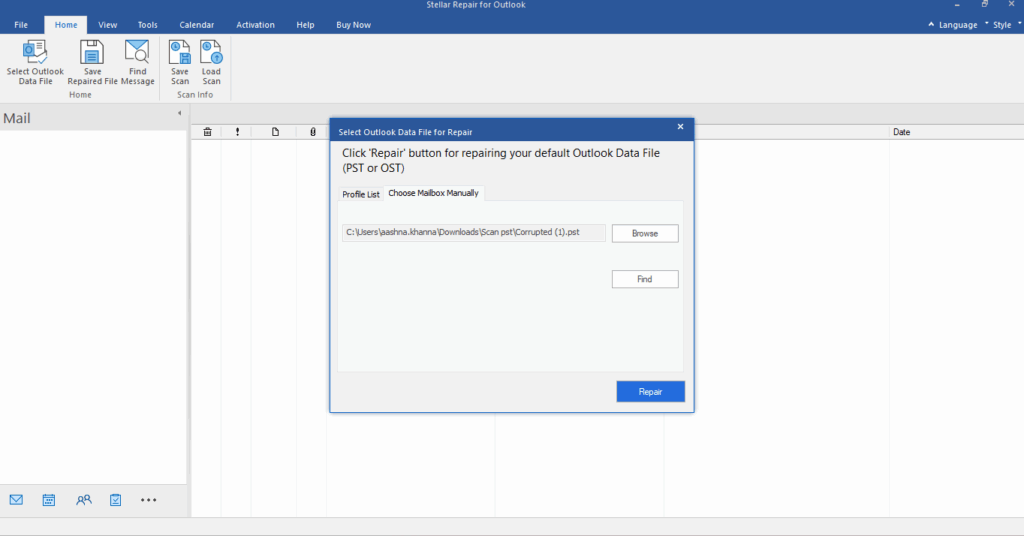
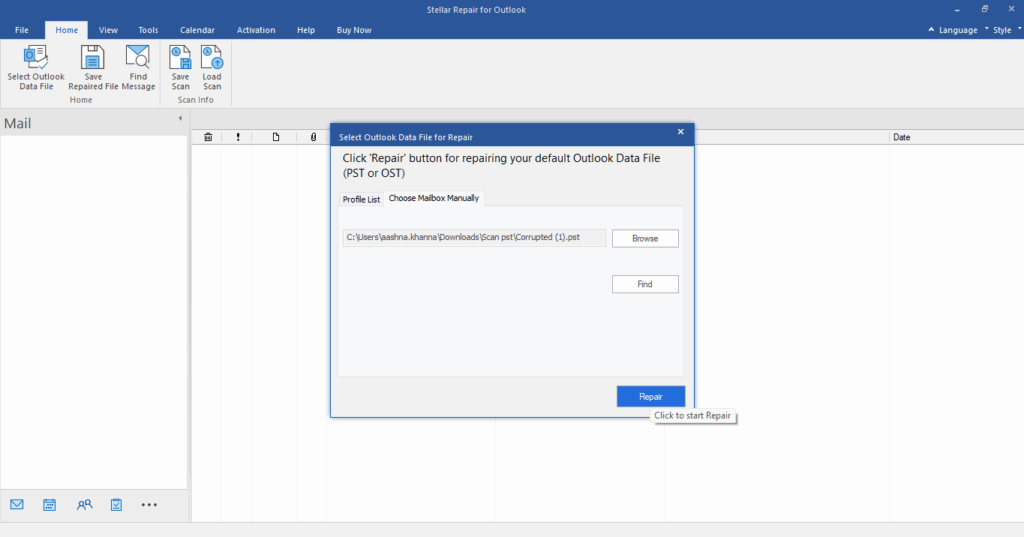
- Click ‘Repair’. The tool will begin a deep scan of the file structure.
- Once completed, browse the recovered items in the tree view to verify your data.
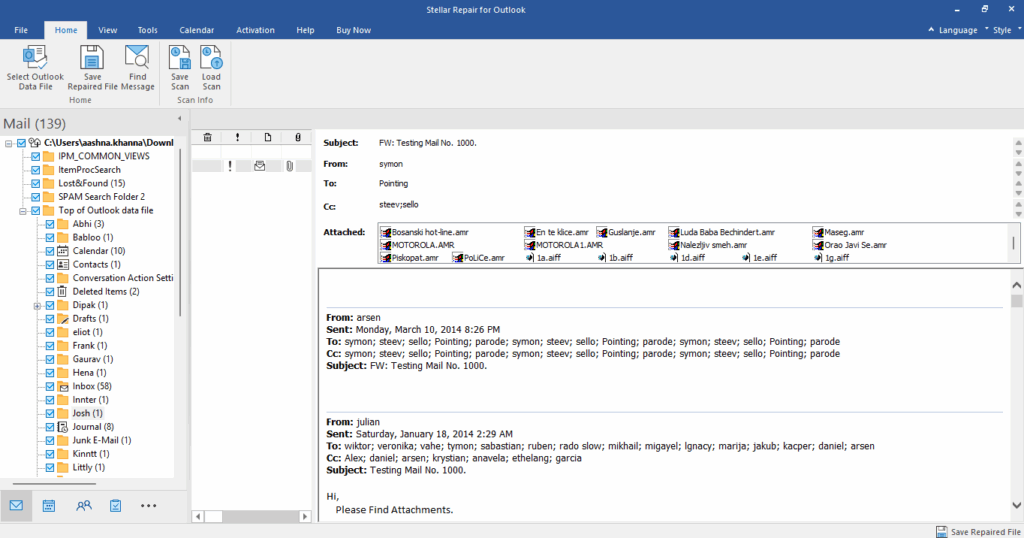
- Click ‘Save Repaired File’, choose your destination format, and apply any filters (like date ranges) to refine the output.
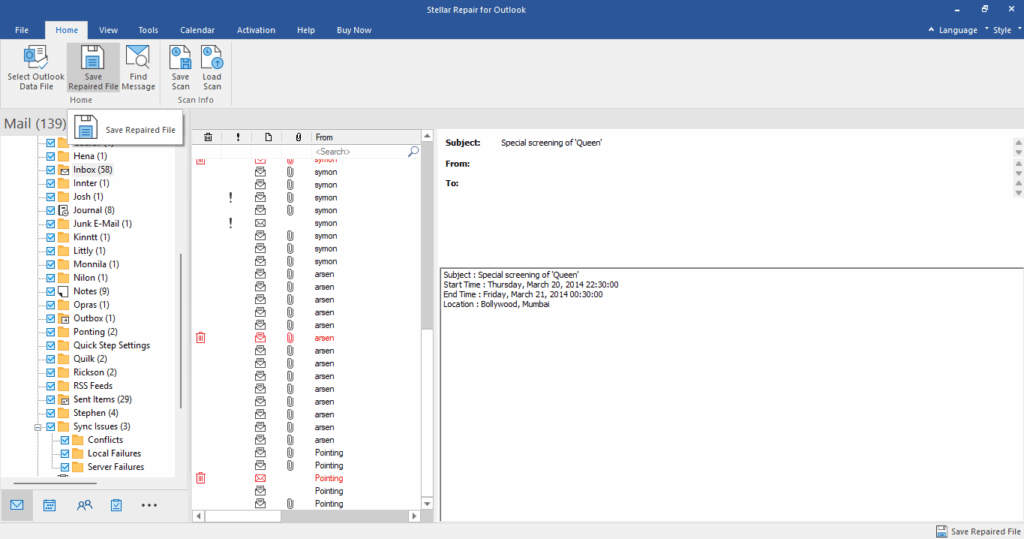
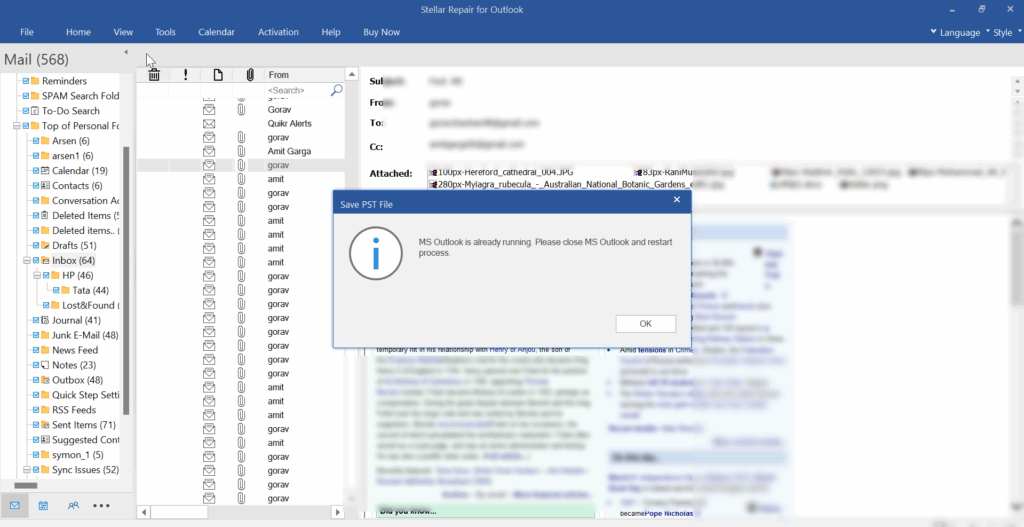
- Make sure MS Outlook is not open in your system, close it before proceeding with the saving options.
- Click Save As to save the repaired PST file in multiple formats, including PST, MSG, EML, RTF, HTML & PDF.
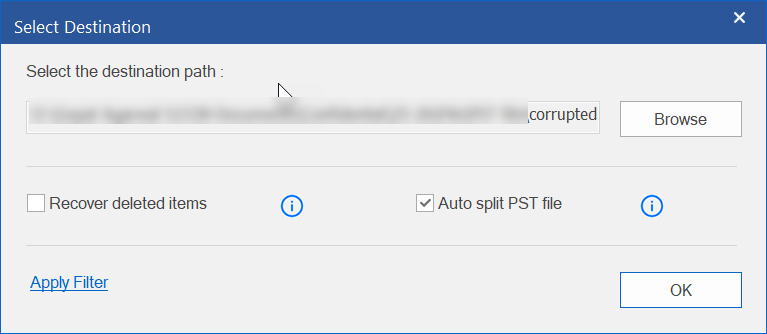
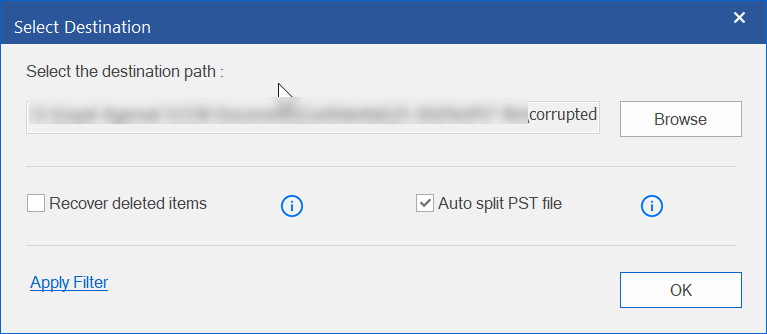
- Select the desired location to save the repaired file. In case you want to recover the deleted items or split your file into small PSTs, then select the options given below: (Recover Deleted Items & Auto Split PST files)
Stellar PST Online Tool
For individuals who can’t install the software or have a single, smaller file to fix, the Online Outlook PST Repair is a viable alternative.
You upload the corrupt file to a secure server, and the tool repairs it in the cloud.
The online version is free for files up to 500MB. Larger files (up to 5GB) require a per-file fee. It is ideal for quick, one-off fixes where local installation isn’t possible.
Performance and Speed
Performance is largely dictated by the level of corruption and the size of the PST. On a standard modern PC, a 10GB file typically takes 15–30 minutes for a deep scan. The software is remarkably stable, avoiding the “Not Responding” crashes that often plague ScanPST.exe when it encounters severe disk errors.
Pricing and Licensing
- Professional ($79/yr): Standard PST repair and recovery.
- Technician ($149/yr): Adds the ability to export directly to Office 365 and split/compact large PSTs.
- Toolkit ($199/yr): A 7-in-1 suite including password recovery and OST-to-PST conversion.
Pros and Cons of Stellar PST Recovery Software
| Pros | Cons |
| Extremely high success rate with severely damaged files.Familiar, intuitive interface.Excellent preview feature (available in the demo).Supports all Outlook versions (2007–2024/Office 365). | The demo allows previewing but requires a license to save the data. |
Final Words
At its core, a damaged PST file isn’t just a technical inconvenience — it’s lost productivity, missed deadlines, and potentially critical business data gone without warning.
Stellar Repair for Outlook was built precisely for this moment. Whether you’re dealing with a oversized PST, sudden Outlook crashes, or years of emails locked behind a corruption error, this tool consistently delivers where Microsoft’s native ScanPST simply cannot.
What sets it apart isn’t just the email repair tool— it’s the confidence it gives you before you spend a single dollar. The free demo lets you scan, preview, and verify your entire recovered mailbox upfront. You’re not buying a promise; you’re buying a result you’ve already seen.
The bottom line: If your Outlook data matters to you, Stellar Repair for Outlook is not just “worth considering” — it’s the most reliable, low-risk path back to a fully functional mailbox. Download the free demo, scan your file, and see your data before you commit. The repair starts the moment you do.