

ScanPST – also known as Inbox Repair Tool – is Microsoft’s built-in tool to repair corrupted PST files. This Outlook PST repair tool scans the PST header and internal structures (like BTree and reference counts) for errors and repair the damaged components of the data file.
However, there are times this tool may stop responding, freeze during the scanning or repair process, fail to complete the repair, or recover only some of the mailbox data. These issues can occur due to a corrupted PST file, large PST files or when there are issues with the Outlook or Office installation.
The version of Outlook you are using is another important factor, as ScanPST.exe is included with Classic Outlook installations. While New Outlook allows you to open and view PST files, it does not include the built-in ScanPST.exe utility for repairing corrupted PST files.
Therefore, users who are using New Outlook may need an alternative way to repair a damaged PST file, or they have to switch to Classic Outlook to repair the PST file. In this article, we will explain how a PST repair tool can help you to repair the PST file without ScanPST.
How to Repair a Corrupt PST File when ScanPST is not working
Below, we have mentioned the solutions to repair the PST file without ScanPST:
Method 1: Create a New PST and Move Accessible Data
If your PST file is partially damaged and still open in Outlook, you may be able to recover the accessible emails and other items manually. To do this, first you need to create a new PST file in Outlook. Then open the damaged PST and copy the accessible folders such as Inbox, Sent Items, Drafts, or other mailbox items to the new PST.
Follow the steps below to Open and create the new PST file:
- Go to File > Account Settings > Account Settings.
- Open the Data Files tab and click Add.
- Choose a name and location for the new PST file, then click OK.
- Once you created the new PST file, move accessible mailbox data in the new PST file.
Note: This method works only if the PST file is partially corrupted and can still be opened in Outlook.
Method 2: Use Online PST Repair Service
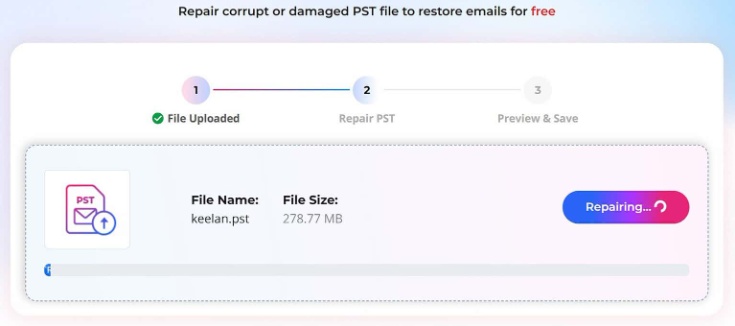
If ScanPST.exe is not working or fails to repair your PST file, you can use Online PST Repair service by Stellar as an alternative to repair the corrupted data file and recover its mailbox data. It allows you to repair your corrupted and damaged PST files without installing any software in just a few clicks. You just need to upload your damaged file and repair it. It also allows you to repair up to 500 MB PST files for free. You can preview the recovered folder structure and item information before downloading the repaired file. Here’s how to do so:
- Open the Stellar Online PST Repair service in your web browser.
- Sign in and upload the corrupt PST file.

Alt-text-sign-page
- Start the repair process.
Alt-text-repairing
- Preview the repaired mailbox structure in HTML format.
- Once the file is repaired, you can download the data file from your browser.
- Open or import the repaired PST in any Outlook profile.
You can use the desktop-based edition of Stellar Repair for Outlook to repair the corrupted PST file if you have a large data file. It is specifically designed to repair oversized or severely corrupted files without any size limit. It has an auto-split feature as well that splits the large PST file automatically to enhance the performance of Outlook. Moreover, you can save your repaired PST file in MSG, EML, RTF, PDF & HTML. formats.
Below, we have mentioned some key features of this tool:
- Repairs corrupted PST files.
- Recovers all mailbox items, including emails, contacts, calendars, notes, journals, and tasks.
- Provides a preview of recoverable mailbox items before saving the repaired data.
- Recovers deleted mailbox items from corrupted PST files.
- Allows you to recover specific mailbox items based on criteria such as email addresses or date ranges.
- Saves recovered data in multiple formats, including PST, EML, MSG, RTF, HTML, and PDF, depending on the product edition.
- The Technician edition can export recovered mailbox data directly to Microsoft 365 and Exchange Server.
Conclusion
If ScanPST.exe fails to fix your Outlook PST file, you can easily recover your emails using Stellar’s tools. For standard files up to 5 GB, you can use the Online PST Repair service, which works directly in your web browser without requiring any software installation. If your file is larger, you can download Stellar Repair for Outlook, a desktop program designed to handle large, severely corrupted data files and seamlessly restore your entire mailbox.