
Have you ever opened up your laptop thinking you’ll complete a single, important task only to be stuck in numerous tabs, notifications and wondering what happened to your hour? Well you’re not alone! Productivity while online can be harder than you think.
However, using the right tools can make your daily routine run much smoother. The best productivity chrome extensions will help you manage your tasks, avoid distractions, improve your writing, organise your research and automate tasks.
Whether you’re a student, working professional or content creator, these 15 chrome extensions will help you get more things done smarter in 2026.
15 Best Productivity Chrome Extensions (2026)
1. Todoist – Best for Task Management
Missing deadlines can really disrupt your day. Todoist allows you to take note of tasks directly from your browser, organise your projects, prioritise tasks and set recurring reminders.
Thanks to its natural language feature it’s super easy to add your tasks. Simply type in what you need to do e.g. ‘Finish report tomorrow’.
Best for: Students, Freelancers and Working Professionals.
2. Grammarly – Best for Writing
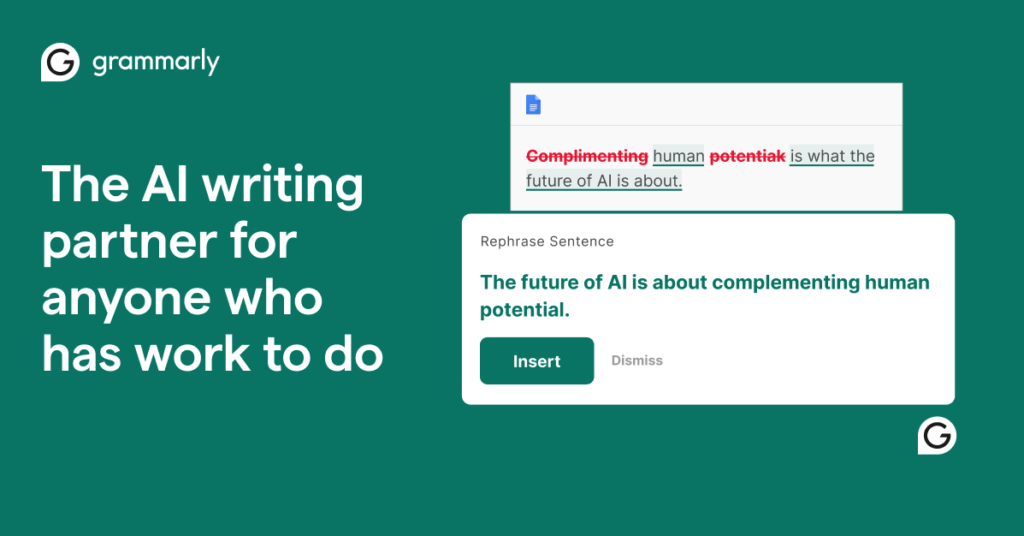
Writing clearly and professionally is incredibly important whether you’re writing emails or blogs. Grammarly will allow you to check your spelling, grammar, punctuation and clarity while writing.
You can also receive suggestions to help improve your tone and readability. The basic writing tool is free however more advanced features require a paid plan.
Best for: Writers, Students, Marketers and Regular Online Writers.
3. Forest – Best for Focus
Sometimes being productive means avoiding distraction. Forest allows you to play a little game to help you stay focused. As you work on a task a little tree will grow.
Simply set your timer and choose what task you’re going to do. Based on the version and platform you may pay for extra features.
Best for: Students, Remote Workers and anyone easily distracted.
4. OneTab – Best for Tab Management
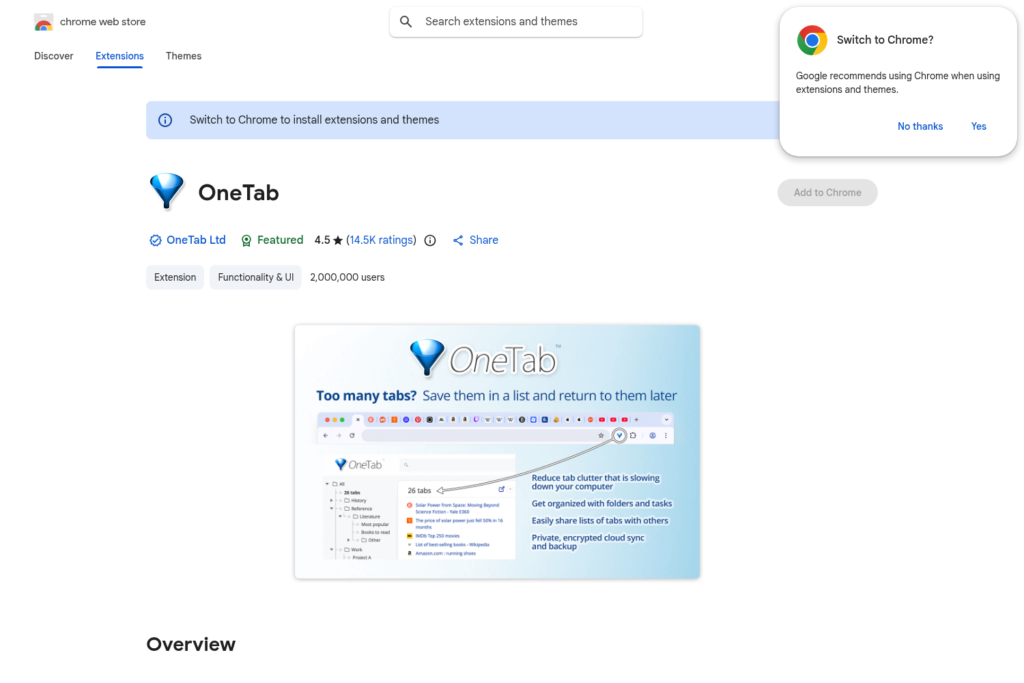
If you have lots of little tabs in your browser and struggle to read them then OneTab can help. Just click one button and all your open tabs will turn into a list.
This helps reduce clutter and may also help with reducing memory used in your browser. Especially if you have lots of pages open.
Best for: Researchers, Multi-taskers and anyone with too many tabs.
When managing calls and notifications efficiently, understanding What Does Cancelled Call Mean? Complete iPhone & Android Guide can help you identify missed connections and avoid unnecessary interruptions.
5. Notion Web Clipper – Best for Saving Research

If you come across a great article but don’t have time to read it then Notion Web Clipper will help. Save any web pages to your Notion account.
Create a search-friendly library to help you with your assignments, content planning, research or personal learning. This is great if you already use Notion.
Best for: Students, Researchers, Bloggers and Knowledge Workers.
6. uBlock Origin Lite – Best for Avoiding Distraction

Sometimes browsing can be frustrating with all the adverts, annoying pop-ups and tracking. UBlock Origin Lite is a light-weight content blocker that works with the newer chrome extensions.
This will block any supported unwanted content to help keep your pages clean and avoid distraction. This has different filters to the original so ensure it meets your needs.
Best for: Anyone wanting a clean, distraction free browsing experience.
7. Wordtune – Best for Rewriting
If you’re struggling to get your sentences to flow then Wordtune will help. This allows you to rephrase your text, change the tone and shorten/lengthen your sentences.
This is great to help you with writing emails, articles or explaining complex ideas. This is limited with the free version however more features are available with paid plans.
Best for: Content Writers, Students, Marketers and Frequent Editors.
8. Loom – Best for Screen Recording
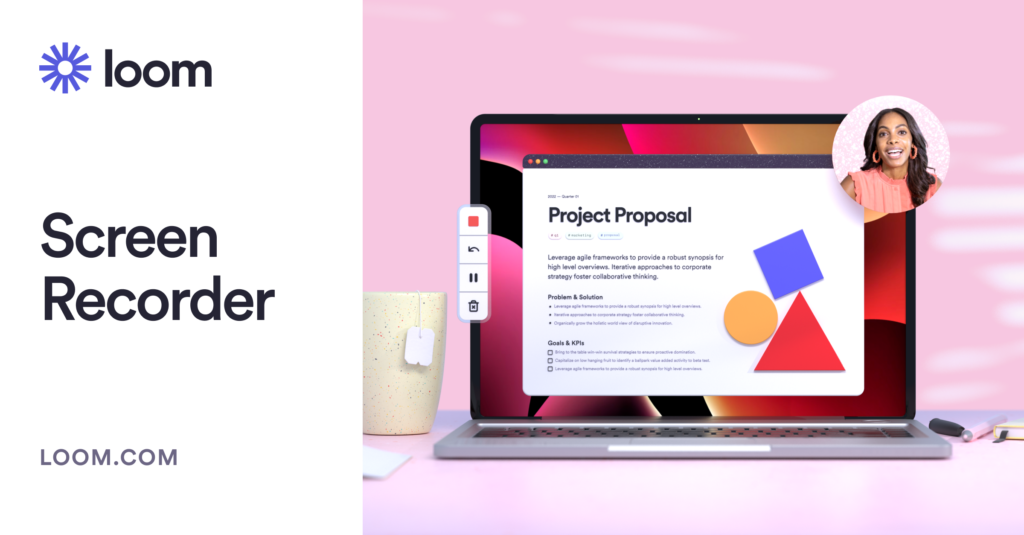
Sometimes it’s not always efficient to explain how to do something complex via a long email. Loom allows you to record your screen, camera or both.
This is great for tutorials, keeping everyone updated on your project, giving feedback and working remotely. Instead of scheduling meetings for small questions you can create a quick video.
Best for: Remote Teams, Educators, Freelancers and Customer Support.
9. Zapier – Best for Automating Tasks
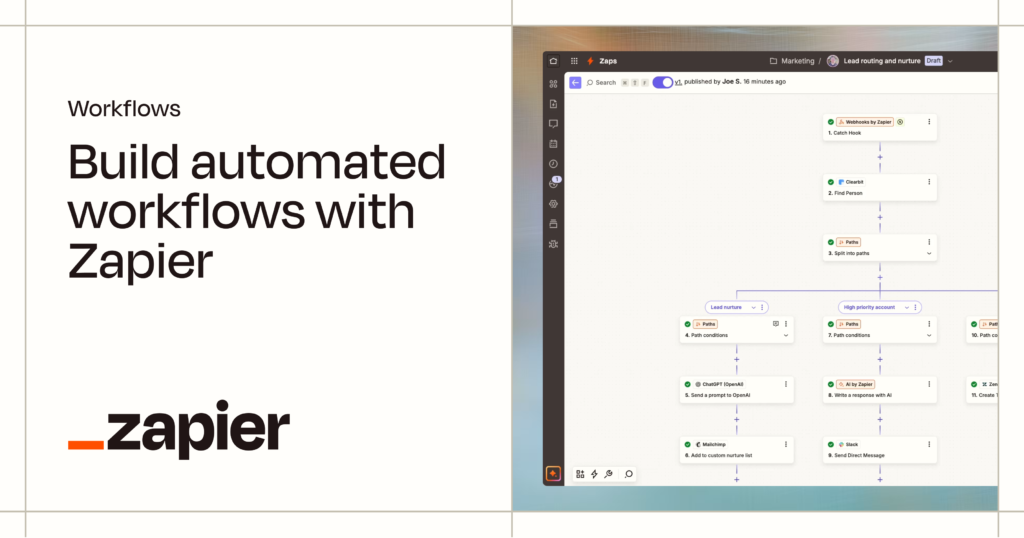
Automate your tasks to save time on repetitive tasks. Zapier allows you to connect supported apps together. You can create rules (Zaps) to automate your workflows.
For example you can automatically send form responses to a spreadsheet or create a task when something happens. The number of integrations and automation will depend on your plan.
Best for: Entrepreneurs, Marketers and Professionals who frequently transfer data between apps.
When managing calls efficiently is part of your workflow, knowing How to Call Back No Caller ID Number | Proven Methods can help you handle missed calls without interrupting your productivity.
10. 1Password – Best for Password Management
Trying to find passwords you’ve forgotten or constantly resetting them can cause your workflow to slow down. 1Password allows you to store your passwords securely, create strong passwords and automatically fill in your logins.
It also helps with switching between work accounts with the browser extension. This will usually require a subscription however some may offer a trial.
Best for: Professionals, Freelancers and anyone with multiple online accounts.
11. Dark Reader – Best for Browsing Comfortably
Sometimes bright websites can be uncomfortable to look at when reading for long periods of time. Dark Reader allows you to change many websites to use a dark theme. You can customize how bright, contrasty etc the site is.
You can customize each site however some may not appear correctly. Not everyone may find this less strain on their eyes.
Best for: Night Readers, Researchers and those who spend hours online.
12. Raindrop.io – Best for Bookmarking
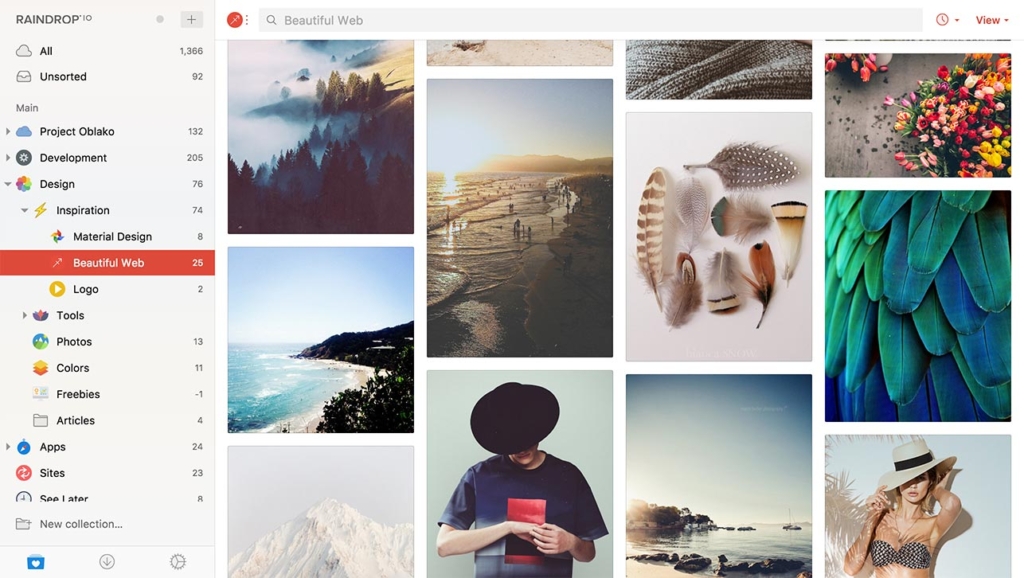
Traditional bookmarking can get messy with hundreds of links. Raindrop.io provides a more visual way to save your websites, articles, videos and more.
Using collections and tags you can group your references together based on the topic. This is great for long term projects with research.
Best for: Researchers, Designers, Students and Content Creators.
13. GoFullPage – Best for Taking Full Page Screenshots
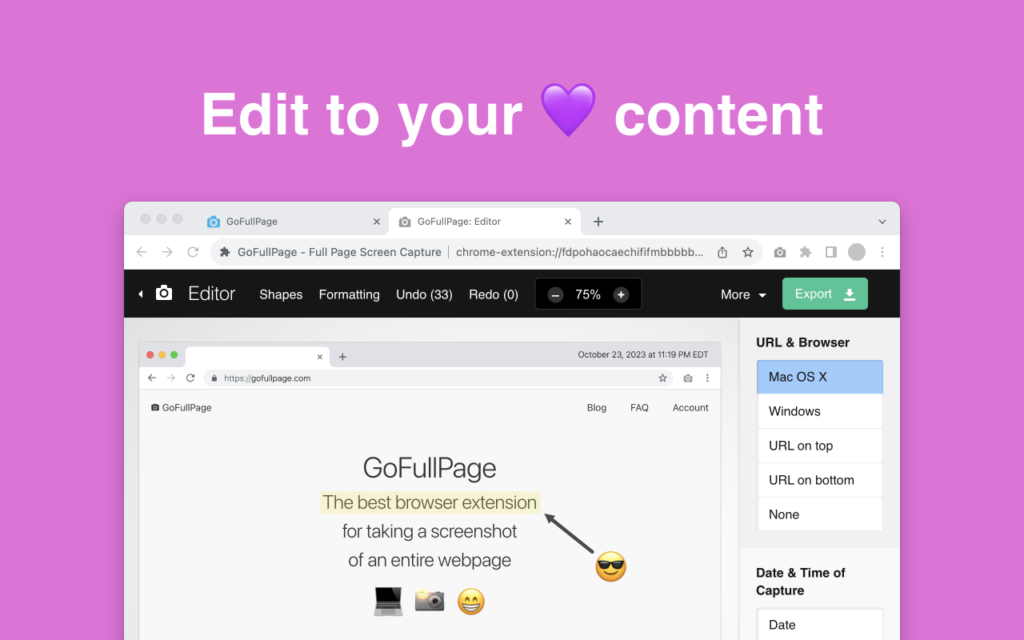
Sometimes you may need to take a screenshot of an entire page. GoFullPage allows you to take screenshots of full pages. These can be exported in supported formats such as images and PDFs.
This is great to save references online, keep track of website designs, view competitor pages or give visual feedback to colleagues.
Best for: Designers, Marketers, Researchers and anyone needing to take screenshots of web content.
Chrome extensions can also help streamline communication tasks, such as learning How to Make Text Small in Discord? to format messages more effectively.
14. Vimium – Best for Keyboard Shortcuts
Switching between your keyboard and mouse can cause disruption. Vimium allows you to use keyboard shortcuts inspired by the Vim Text Editor. This allows you to navigate around pages, scroll and click links without using your mouse as much.
It does take a bit of getting used to however once you know your shortcuts it can really speed up your browsing.
Best for: Developers, Keyboard Enthusiasts and those who like to navigate efficiently.
15. Todoist Alternative – Momentum – Best for Motivating New Tab
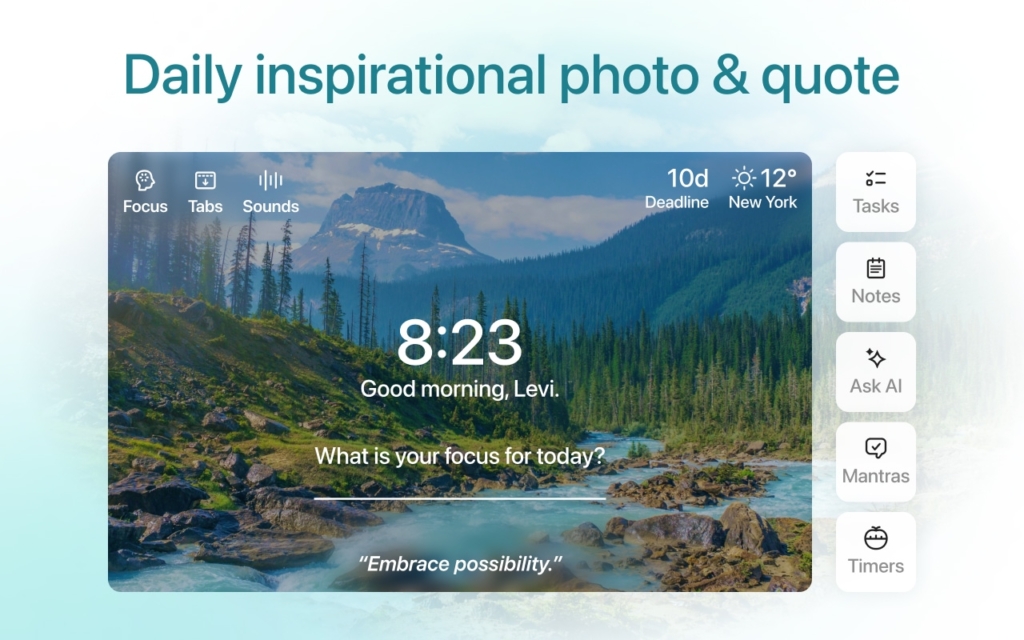
Opening a new tab can often lead to distraction. Momentum changes your new tab page to a relaxing dashboard. This includes a beautiful background image, daily focus and more.
This will help you to focus on what matters today rather than instantly opening a website. Some extra features may be available with paid plans.
Best for: Those who want a simple daily focus routine and clean browsing.
Frequently Asked Questions
What are the best productivity chrome extensions in 2026?
Todoist, Grammarly, Forest, OneTab and Zapier are all very popular. It will depend on your workflow.
Are productivity chrome extensions free?
Many are free to use. Todoist, Grammarly, Forest and Notion Web Clipper are free to use however more advanced features may require a subscription.
Can chrome extensions increase my productivity?
Yes! They can help to reduce repetitive tasks, organise your information, improve your writing and reduce distractions. However it depends on what you actually need.
How many chrome extensions should I use?
There’s no set amount. Start with a few key ones and delete any you don’t use often. Keeping your browser simple can help with performance and security.
Conclusion
The best productivity chrome extensions in 2026 won’t necessarily be the most feature rich. They’ll help with common issues you face such as organising your assignments, improving your writing, reducing distractions and making repetitive tasks easier.
Start with two or three extensions that will help with your main issues. Let them become part of your routine. Only add more if you really need them. Productivity is about getting meaningful work done with less hassle.