Screenshots make it easy to save information, ideas, and content you want to reference later. The challenge comes when those screenshots contain usernames, app icons, labels, or other watermarks that make them difficult to reuse.
Let us talk about how you can overcome that with provable AI-powered tools in simple steps.
Why Watermarks Make Screenshots Difficult to Reuse
Saving a picture because you want to add your thoughts to it or repurpose it using a screenshot does not go without problems. You will see different icons or text that distract attention from the main content.
Sometimes, watermarks are subtle and unnoticeable, but they do affect your professionalism. At first, they tell your audience that you are not a creator who pays attention to what you post online. You are the “anything-goes” kind of creator, they scream. For someone competing in the digital marketing space, building a personal image or a brand, never give that feeling to your audience when there are ways to remove that.
Watermarks limit the repurposing of the images for presentations, blogs, tutorials, and marketing materials. First, it distracts the audience. And, second, excessive watermarks can make content appear less polished. Some will resolve not to use the images even though they communicate their ideas better than any other images on their device.
Common Ways to Remove Watermarks from Screenshots
Those who take their brand image seriously often resort to three ways to remove watermarks from their screenshots and other images. They would either edit it manually on their device, use traditional photo-editing software, or leverage artificial intelligence-powered watermark removal tools. All of these watermark removal models have their own features and operational methods. They are prone to blurring a part of the image or adjusting its angles. In any of these ways, you did not deal with the population, which will make your image lose some of its features unless you are an experienced photo editor. On the other hand, AI-powered watermark removal tools heal watermarked areas by interpolating noticeable environmental features. This retains your image frame and interpolation and still removes the watermarks.
Tools and Step-by-Step Process to Remove Watermarks From Screenshots
Let us talk about tools you can use to remove watermarks from your screenshots. The first, though underestimated, is the image-viewing app on your device. Some devices have incorporated artificial intelligence. However, these features don’t produce high-quality results like specialised AI-powered tools do.
The list of AI-powered image editing tools is inexhaustible. If you want to go over everything, you will spend years experimenting. Later, you will discover that the list you once had had become outdated before you started. That happens because the artificial intelligence world is competitive, and many brands are rushing in to gain and solve problems. So, we will narrow it down to one.
For this article, we will adopt a reliable AI-powered all-in-one photo and video editing software called Wink AI and have a hands-on experience of its AI Watermark Remover and AI Image Enhancer. Image enhancement comes in because the goal of removing the watermark is to repurpose the screenshots. After removing watermarks from your images, you can restore any quality loss caused by multiple image shares and minor imperfections without leaving the app/software.
Step 1: Remove Watermarks Using Wink AI Watermark Remover
When it comes to removing watermarks, Wink AI’s image watermark remover performs better and offers more options. The tool does not just remove watermarks; it lets you choose whether you want to remove icons, text, or both from your images. That is one of the strengths of this tool. Check how to do that below.
Step-by-step process to remove watermarks from screenshots using Wink AI Watermark Remover
- Open Wink AI browser/app and select Watermark remover or tap “Watermark remover” here

- Upload the screenshot by tapping the “Upload Image/Video” button
- Select watermark removal options and select “Start Processing.”
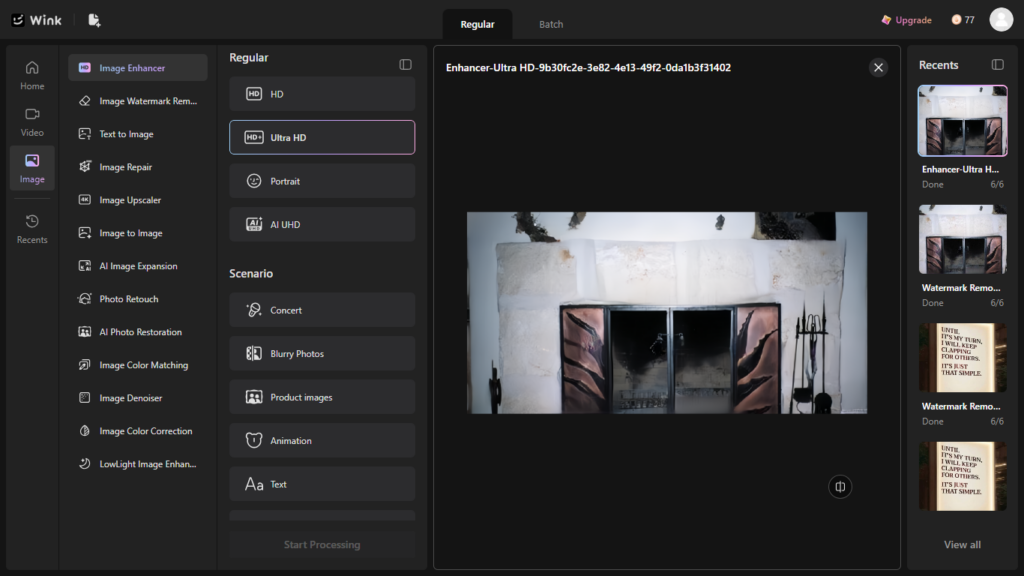
- Preview and download the image
Step 2: Enhance the Screenshot After Watermark Removal
Enhancing the screenshots you have just removed their watermark is necessary for two reasons. One, watermark cleanup may leave minor imperfections on your images. Two, what you screenshotted may be a picture that has been shared many times without your knowledge. That’s where the Wink AI Image Enhancer comes in to improve your image clarity and appearance.
Step-by-step process to enhance screenshots with Wink AI Image enhancer
- Open Wink AI browser/app and select image enhancer or tap “Image Enhancer” here
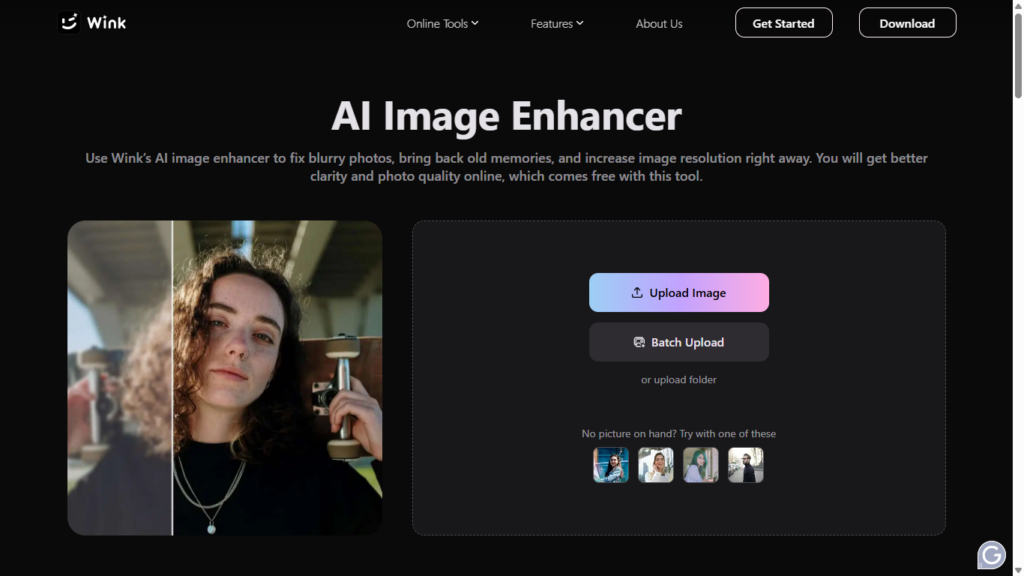
- Upload the screenshot you removed the watermark from.
- Select image enhancement options and select “Start Processing.”

- Preview and download your image
Conclusion
Removing a watermark from your screenshots should not be what you do for fun. Doing it consistently can change how your audience sees your posts and brand forever. Since Wink AI breaks the process down and handles the task effortlessly, taking technical experience out of the equation, you shouldn’t have any excuses again.
What it takes to have a watermark-free image is uploading it to the Wink AI image watermark remover to handle the task. No prompt needed. This is the process in a sentence: open the software, select the image watermark remover, upload your screenshot, select the watermark remover options, tap “Start Processing,” preview the image, and download.
If you regularly use screenshots in presentations, tutorials, social posts, or marketing materials, removing distractions and improving image quality can help your content look cleaner and more professional. Open the Wink AI watermark remover now and keep using watermark-free images.