
Key Takeaways
- No Built-In Word Count: Google Slides does not offer a native word count feature.
- Multiple Workarounds Exist: Use Google Docs, speaker notes, manual estimation, or third-party tools to count words.
- Add-Ons Can Help: Chrome extensions and Workspace add-ons can simplify the process.
- Visual Balance Matters: Limiting words per slide and using visuals keeps presentations clear and engaging.
- Ideal Word Count per Slide: Aim for under 50 words per slide and stick to concise bullet points.
Introduction
Word counting is an important tool to keep away from wordy or shorter content. Although it isn’t directly available for Google Slides, we are here to tell you a few workarounds in an easy to follow format.
What Is An Ideal Word Count For Google Slides?
The sweet spot for word count is usually between 500 and 800 words for a session lasting 20 to 30 minutes. Try aiiming for no more than six lines of text per slide, with each line containing around six words. This approach helps keep your audience engaged while you share clear and powerful messages. It’s best to keep your text concise, leaning towards bullet points, and make sure any visuals you include complements the content for the best possible engagement.
Can You See Word Count Directly On Google Slides?
Google Slides doesn’t come with a built-in word count feature, which can be a bit of a hassle if you need to know how many words are in your presentation. But don’t worry, there are easy ways to get that!!
Knowing the word count in your presentation can help with timing—after all, many presenters often ask how many words is a 5 minute speech, and having that count visible in Google Slides can make preparation much easier.
Workarounds To Check Word Count In Google Slides
Copy Text To Google Docs
This is a straightforward way to get the word count from your slides, just copy the text and paste it into Google Docs. After you’ve pasted it, you can easily find the word count by using the word count tool (just go to Tools > Word Count or hit Ctrl+Shift+C) for an accurate total. Here’s how to do it:
- Select the text box or multiple text boxes.
- Copy it (Ctrl+C) and then paste it (Ctrl+V) into a new Google Doc.
- Check the word count.
This approach is great if you need the count for your whole presentation or just a few specific slides.
Use Speaker Notes
If you’ve got detailed content in your speaker notes, you can count these words too! Although Slides doesn’t automatically tally the words in speaker notes, here’s a simple workaround:
- Just copy all your speaker notes into a Google Doc.
- Then, use the word count feature in Docs.
This trick is especially handy if you’re getting ready for a speech or putting together presentation notes to go along with your slides.
Add A Word Count Add-On
If you’re looking for a little help, some Chrome extensions and Google Workspace add-ons can really come in handy. Just search for “Word Count for Google Slides” in the Google Workspace Marketplace. These handy tools will scan your presentation and give you a detailed word count report. Just remember to stick with trusted add-ons from third party websites!!
Manual Estimation
If you’re short on time and only have a little bit of text, you can quickly estimate the word count on your own.
Just count the words in a few text boxes.
Then, multiply that number by how many slides you have with a similar amount of text. While this method isn’t foolproof, it can give you a decent ballpark figure.
Using The Explore Tool
- To check the word count in your Google Slides presentation, start by opening the presentation you want to analyze.
- Next, look for the “Explore” button in the bottom-right corner of your screen and give it a click.
- A search bar will pop up—just type in “word count” there. When you see the “Word count” option in the results, click on it.
- A new window will then open up, displaying the total number of words, pages, characters (both with and without spaces), and the number of slides in your presentation.
Using Keyboard Shortcuts
- To check the word count in your Google Slides presentation, start by opening the file you want to analyze.
- Then, press the “Ctrl” and “Shift” keys at the same time on your keyboard. While keeping those keys pressed, hit the “C” key.
- A new window will pop up, displaying the total number of words, pages, characters (both with and without spaces), and the number of slides in your presentation.
While Google Slides doesn’t show word count by default, checking it can be useful—especially when converting your content to written formats, where you might wonder how many pages is 1200 words.
Third-Party Tool To Count Words
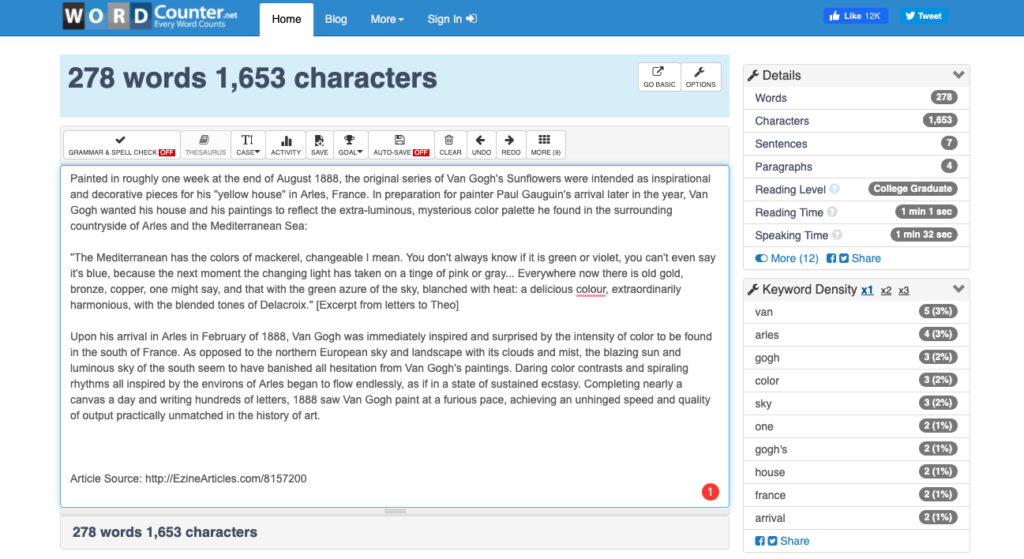
WordCounter.net
This is a fantastic, free tool that’s super easy to use. Just paste your slide text, and you’ll get an instant breakdown of word count, character count, and keyword density.
Word Count Tool (wordcounttool.com)
It allows you to upload text and files, providing a detailed analysis that includes average word length and estimated reading time. This can really help professionals polish their presentations for better audience engagement.
Some Tips To Manage Word Count Effectively
Set A Target Word Limit Per Slide
Try to keep your slides to around 30–50 words. This way, you’ll keep your audience engaged and make it easier for everyone to read during meetings.
Use Bullet Points, Not Paragraphs
Swap out those long paragraphs for bullet points. They help highlight the main ideas and make the information much simpler to understand and discuss.
Focus On Visual Communication
Whenever you can, use charts, graphs, and icons to share information visually. A single, well-made graphic can often say more than a whole bunch of sentences.
Make Key Information Stand Out
Focus on the most important points. Be clear of overcrowding your slides with background details that are better suited for verbal explanations or additional materials.
Edit With Precision
Once you’ve created your slides, take a moment to go through each one and cut out any unnecessary words, refine your phrasing, and make sure every single word contributes to your message.
Also Check out: How Do You Write And Spell 80000 in Words?
FAQs
Unfortunately, Google Slides doesn’t have a built-in word count feature at the moment. But don’t worry! You can easily work around this by copying your text into Google Docs or using some handy third-party tools and extensions.
In a professional environment, it’s best to keep each slide to under 50 words. This helps keep things clear, keeps your audience engaged, and gives you the chance to expand on your points verbally.
Keeping track of word count helps you stay focused, enhances slide readability, and makes sure your key messages come across clearly. If your slides are overcrowded, it can leave your audience confused and diminish the overall impact of your presentation.
Conclusion
While Google Slides doesn’t have a built-in word count feature, you can easily manage your content with a few simple tricks and some handy third-party tools. We hope this guide will help you in making better slides.